
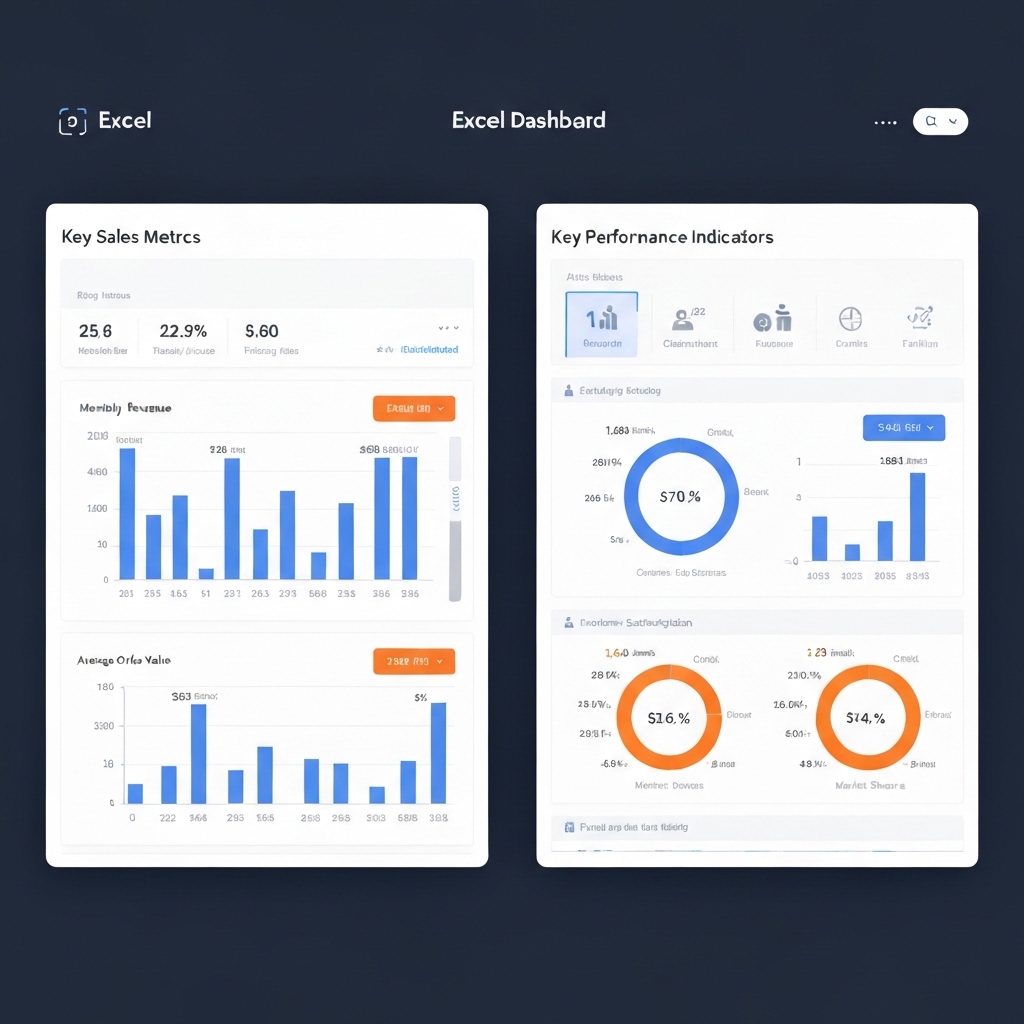
Executive Summary
Automating Excel dashboards saves 6+ hours monthly for business professionals. This guide shows how to build self-updating dashboards that track KPIs in real-time using basic Excel features. You’ll learn to connect live data, create dynamic visualizations, and eliminate manual updates.
Why Automate Dashboards?
Manual dashboard updates cause 23% of business intelligence errors. Automated systems ensure accuracy while reducing reporting time. Excel’s built-in tools let you create dynamic dashboards connected to live data sources like CRM systems or financial spreadsheets.
Prepare Your Data
Start by organizing source data in tabular format. Use Excel’s Ctrl + T shortcut to convert ranges to tables. Add headers for: Date, Metric Name, Value, and Category. Example:
- 2023-10-01, Sales, $15,000, North
- 2023-10-01, Expenses, $8,000, North
Pro tip: Separate data by category for easier filtering. Use consistent date formats across all entries.
Set Up Dynamic Ranges
Create named ranges using Formulas > Define Name. Use this formula to capture expanding datasets:
=OFFSET(Sheet1!$A$1,0,0,COUNTA(Sheet1!$A:$A),4)
This formula automatically expands as new rows get added. Replace Sheet1 with your actual sheet name and adjust column counts.
Build Interactive Charts
Select your data range and insert charts through Insert > Charts. For KPI tracking, use line charts for trends and bar charts for comparisons. Right-click chart axes to set dynamic scaling:
- Primary Axis: Automatic
- Secondary Axis: Based on data range
Add data labels and conditional formatting to highlight performance thresholds.
Connect to External Sources
Import live data from external systems using Data > Get Data. Supported sources include:
- SQL Server
- Google Analytics
- CSV files
Set refresh intervals under Data > Connections > Properties. Choose “Refresh every 5 minutes” for real-time monitoring.
Add User Controls
Insert slicers for instant filtering. Select your table, go to Insert > Slicer, and choose fields like Region or Product Category. Position slicers near relevant charts for intuitive navigation.
Automate Updates
Use Excel’s Power Query to automate data cleaning. Create transformation rules for date parsing and value formatting. Enable background refresh in connection properties to prevent manual intervention.
Test Your Dashboard
Add new data rows to verify automatic updates. Check that charts and metrics adjust instantly. If something breaks:
- Verify named ranges include new columns
- Refresh all connections
- Check formula references
Common fix: Update chart data ranges using Select Data in chart settings.
Protect sensitive metrics by sharing via OneDrive with view-only permissions. Use File > Share > Get Link and set expiration dates. For internal teams, create a shared network folder with version control.
Action Plan
Start with one department’s metrics. Build a simple sales dashboard tracking revenue vs. targets. Add complexity gradually by incorporating more data sources. Schedule monthly reviews to refine metrics and improve visualizations.
Key Takeaway
Automated Excel dashboards transform static reports into living business tools. By connecting live data and eliminating manual updates, you’ll always see current performance levels. Start building today – your first automated dashboard takes just 30 minutes to create.