
Unlock the power of Excel automation for executives with advanced financial modeling and reporting techniques. Streamline your workflows, enhance accuracy, and make data-driven decisions effortlessly. Elevate your financial strategy today!
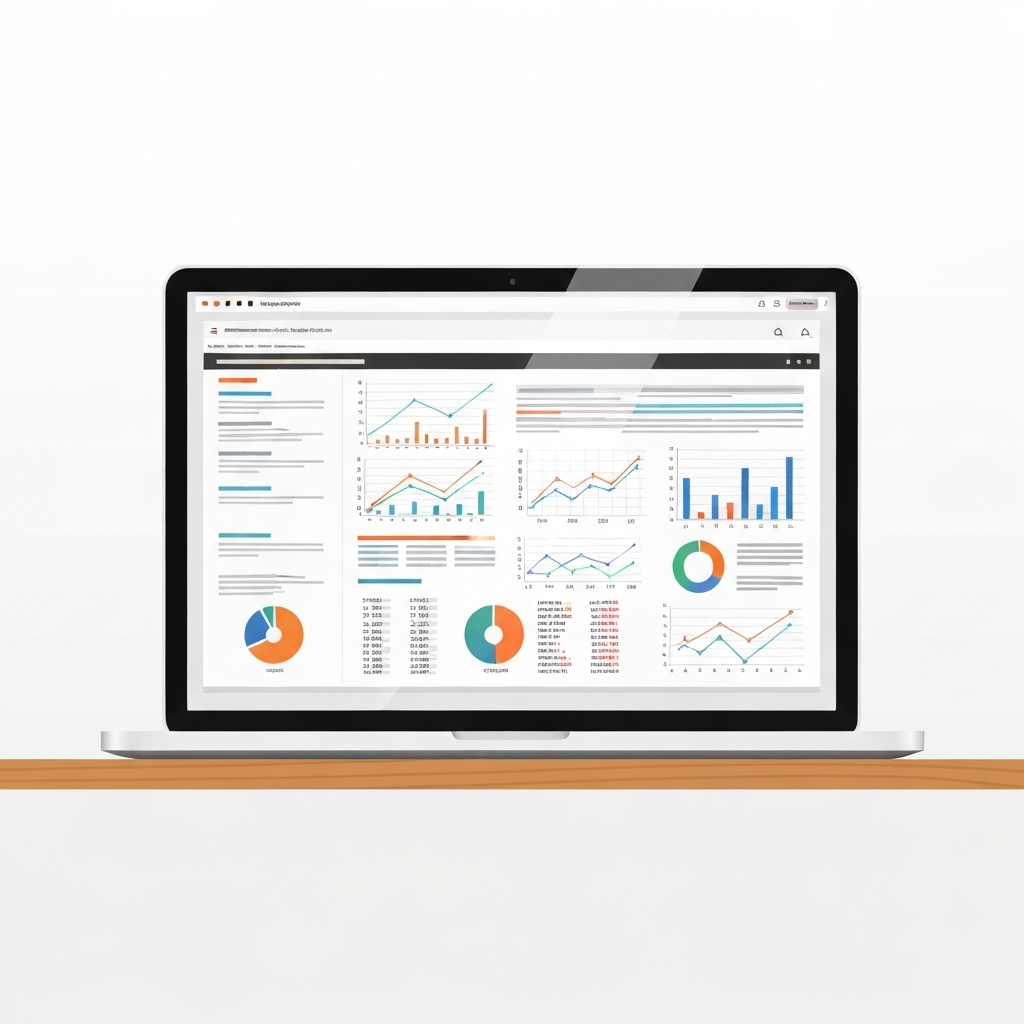
In today’s fast-paced business environment, executives need tools that not only simplify complex financial data but also enable quick, informed decision-making. Excel, a staple in financial analysis, has evolved beyond basic spreadsheets. With advanced automation techniques, executives can streamline workflows, enhance accuracy, and unlock deeper insights into their financial models and reports. This article explores practical strategies, tools, and frameworks to elevate your Excel game, ensuring you stay ahead in the competitive landscape.
Why Excel Automation Matters for Executives
Excel automation is no longer a luxury—it’s a necessity. For executives, time is a precious resource, and manual data manipulation can lead to errors and inefficiencies. Automation transforms Excel into a powerful engine for financial modeling, forecasting, and reporting. Here’s why it’s critical:
- Time Efficiency: Automate repetitive tasks like data consolidation, report generation, and scenario analysis.
- Accuracy: Reduce human errors with formulas, macros, and templates that ensure consistency.
- Scalability: Handle larger datasets and complex models without compromising performance.
- Insight Generation: Leverage dynamic dashboards and visualizations to identify trends and opportunities.
By mastering Excel automation, executives can focus on strategic decision-making rather than getting bogged down by data management.
Core Components of Advanced Financial Modeling in Excel
Before diving into automation, it’s essential to understand the building blocks of advanced financial modeling. These components form the foundation for any automated system:
1. Dynamic Formulas and Functions
Excel’s formulas are the backbone of financial modeling. Advanced functions like SUMIFS, INDEX-MATCH, XLOOKUP, and SUMPRODUCT allow for flexible and scalable models. For instance, use XLOOKUP to dynamically pull data from different sheets or workbooks, reducing manual adjustments.
2. Data Tables and Scenario Analysis
Data tables enable executives to perform what-if analyses by varying input variables. Combine this with Goal Seek or Solver to optimize financial outcomes. For example, model how changes in interest rates or revenue growth impact profitability.
3. Interactive Dashboards
Dashboards provide a visual summary of key financial metrics. Use tools like PivotTables, charts, and slicers to create interactive reports. Automation ensures these dashboards update in real-time as new data is added.
4. Error Checking and Validation
Incorporate error-checking formulas (IFERROR, ISERROR) and data validation rules to maintain model integrity. Automation can flag inconsistencies or anomalies, ensuring reliability.
Automating Financial Reporting in Excel
Financial reporting is a critical function for executives, but it’s often time-consuming and prone to errors. Automation can revolutionize this process:
1. Template-Based Reporting
Create standardized report templates with predefined formulas, formatting, and charts. Use Power Query to pull data from multiple sources and populate these templates automatically.
2. Macros for Repetitive Tasks
Excel’s Macro Recorder allows you to automate repetitive actions like formatting, data consolidation, or report generation. For advanced users, VBA (Visual Basic for Applications) provides greater customization and control.
3. Real-Time Data Integration
Connect Excel to external data sources like databases, ERP systems, or cloud platforms using Power Query or APIs. This ensures your reports always reflect the latest information.
4. Automated Email Distribution
Use VBA or third-party tools to automate the distribution of reports via email. Schedule reports to be sent at specific intervals, keeping stakeholders informed without manual intervention.
Advanced Techniques for Excel Automation
To truly unlock Excel’s potential, executives should explore these advanced techniques:
1. Power Pivot and DAX
Power Pivot extends Excel’s data modeling capabilities, allowing you to work with millions of rows and create complex calculations using DAX (Data Analysis Expressions). This is ideal for multi-dimensional financial analysis.
2. Power Query for Data Transformation
Power Query simplifies data cleaning, transformation, and loading (ETL) processes. Automate tasks like merging tables, removing duplicates, and reshaping data for analysis.
3. Conditional Formatting and Data Visualization
Use conditional formatting to highlight key trends or anomalies in your data. Combine this with advanced charting techniques (e.g., waterfall charts, heatmaps) to create visually compelling reports.
4. Excel Add-Ins and Third-Party Tools
Enhance Excel’s functionality with add-ins like **Klipfolio**, **XLTools**, or **Power BI**. These tools offer advanced features for automation, visualization, and integration with other platforms.
Practical Framework for Implementing Excel Automation
To successfully implement Excel automation, follow this step-by-step framework:
- Identify Pain Points: Pinpoint areas where manual processes are time-consuming or error-prone. Common examples include monthly reporting, budget forecasting, or variance analysis.
- Design the Model: Map out the structure of your financial model, including data sources, calculations, and outputs. Ensure it’s scalable and user-friendly.
- Automate Key Processes: Start with high-impact tasks like data consolidation or report generation. Use macros, Power Query, and templates to automate these processes.
- Test and Validate: Thoroughly test your automated models to ensure accuracy and reliability. Validate results against manual calculations or historical data.
- Train Your Team: Provide training to ensure your team can effectively use the automated tools. Document processes for future reference.
- Monitor and Optimize: Regularly review your automated systems to identify areas for improvement. Stay updated on new Excel features and tools to enhance functionality.
Case Study: Excel Automation in Action
Consider a mid-sized retail company struggling with monthly financial reporting. The finance team spent 3 days consolidating data from 10 regional offices, often resulting in errors. By implementing Excel automation:
- Power Query was used to pull data from regional spreadsheets into a central workbook.
- Macros automated the consolidation and formatting process.
- Dynamic dashboards provided real-time insights into sales, expenses, and profitability.
The result? Reporting time reduced to 1 day, with a 90% decrease in errors. Executives gained access to timely, accurate data, enabling better decision-making.
Overcoming Common Challenges
While Excel automation offers significant benefits, it’s not without challenges:
- Learning Curve: Advanced techniques like VBA or Power Pivot require training. Invest in upskilling your team.
- Data Quality: Automation relies on clean, consistent data. Implement data validation rules and regular audits.
- Version Control: When multiple users work on the same file, version control becomes critical. Use cloud-based platforms like SharePoint or OneDrive.
Future Trends in Excel Automation
As technology evolves, so does Excel. Stay ahead of the curve with these emerging trends:
- AI Integration: Tools like Excel’s Ideas feature use AI to analyze data and suggest visualizations or insights.
- Cloud Collaboration: Excel’s integration with Microsoft 365 enables real-time collaboration and cloud-based automation.
- Advanced Analytics: Incorporate predictive analytics and machine learning models directly into Excel using Python or R.
Conclusion
Excel automation is a game-changer for executives looking to streamline financial modeling and reporting. By leveraging advanced techniques like Power Query, macros, and interactive dashboards, you can save time, reduce errors, and gain deeper insights into your financial data. Start small, focus on high-impact areas, and continuously optimize your processes. With Excel as your ally, you’ll be well-equipped to drive strategic decisions and propel your business forward.
Ready to transform your financial workflows? Dive into Excel automation today and unlock the full potential of your data.