
Streamline your client management with our Cleaning Client Database Template Google Sheets. Organize, update, and maintain your client data effortlessly. Download now for a clutter-free, efficient database solution!
Managing a growing list of clients can quickly become overwhelming, especially when dealing with scattered information across multiple platforms.
Whether you’re a small business owner, freelancer, or part of a larger team, a well-organized client database is essential for efficiency, accuracy, and scalability. Enter the Cleaning Client Database Template Google Sheets – a customizable, user-friendly solution designed to help you organize, update, and maintain your client data effortlessly.
In this article, we’ll explore why a clean client database is crucial, how to use our Google Sheets template, and practical tips for maintaining a clutter-free system.
Plus, we’ll provide a step-by-step guide to downloading and customizing the template for your unique needs.
Why a Clean Client Database Matters
Before diving into the template, let’s discuss why a clean client database is a game-changer for your business:
- Improved Efficiency: A centralized database saves time by eliminating the need to search through emails, notes, or spreadsheets for client information.
- Enhanced Accuracy: Consistent data entry reduces errors and ensures you have up-to-date contact details, preferences, and transaction histories.
- Better Client Relationships: Accessing client information quickly allows you to personalize interactions, improving satisfaction and loyalty.
- Scalability: As your business grows, a structured database ensures you can manage more clients without losing track of details.
- Data-Driven Decisions: Analyzing client data helps identify trends, preferences, and opportunities for growth.
A clean client database isn’t just a tool – it’s a foundation for smarter, more effective client management.
Introducing the Cleaning Client Database Template Google Sheets
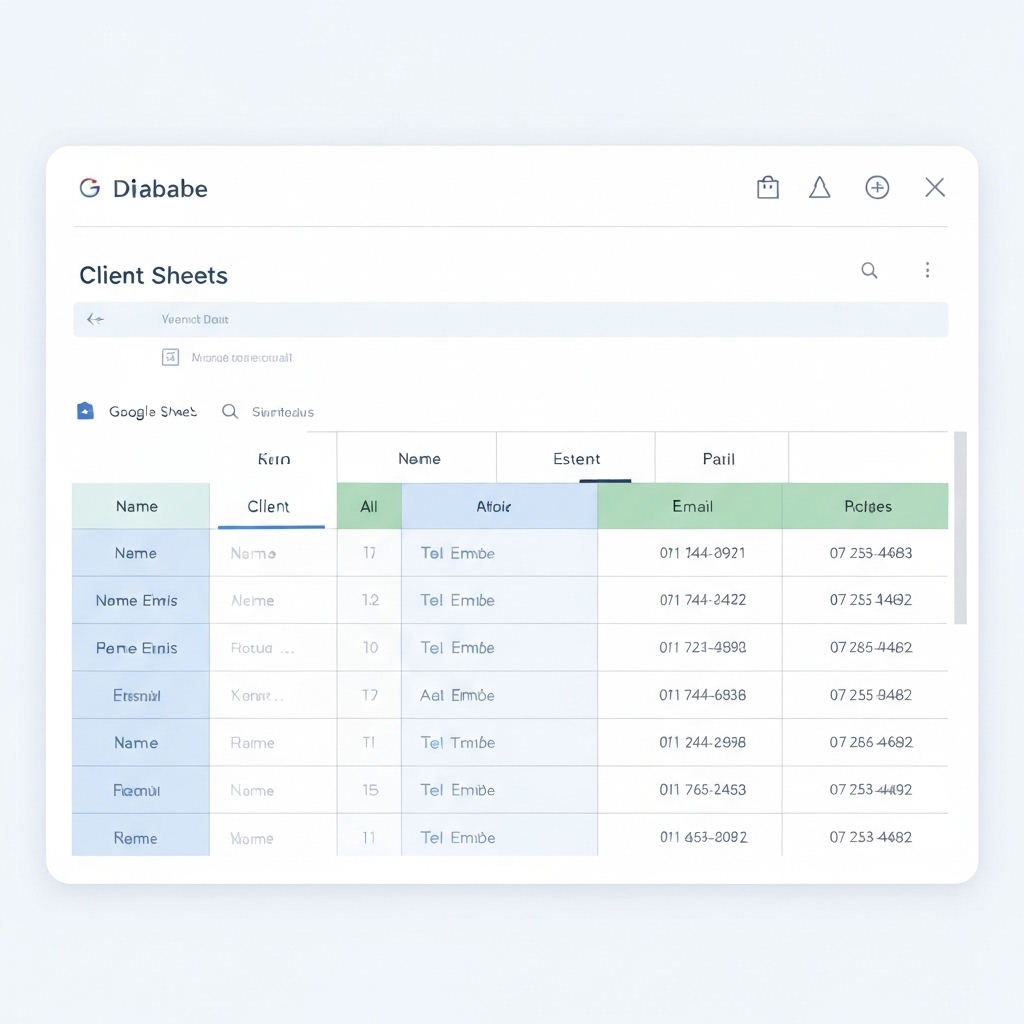
Our Cleaning Client Database Template Google Sheets is designed with simplicity and functionality in mind. It’s perfect for cleaning businesses, freelancers, or any service provider looking to streamline their client management process. Here’s what makes it stand out:
- User-Friendly Interface: Easy to navigate, even for those new to Google Sheets.
- Customizable Fields: Tailor the template to include the specific data points your business needs.
- Automated Features: Use formulas and filters to sort, search, and analyze client data effortlessly.
- Cloud-Based Access: Collaborate with team members in real-time and access your database from anywhere.
Key Features of the Template
Our template includes essential columns and features to help you manage client data effectively:
- Client Information:
- Name
- Email Address
- Phone Number
- Address
- Service Details:
- Service Type e.g., residential, commercial
- Frequency e.g., weekly, bi-weekly
- Next Scheduled Service Date
- Payment Information:
- Payment Method
- Last Payment Date
- Outstanding Balance
- Notes and Preferences:
- Special Requests
- Allergies or Pet Information
- Preferred Contact Method
- Status Tracking:
- Active/Inactive Client Status
- Date Added to Database
Each section is designed to provide a comprehensive overview of your clients, ensuring no detail is overlooked.
How to Use the Cleaning Client Database Template Google Sheets
Ready to get started? Follow these simple steps to download, customize, and use the template:
Step 1: Download the Template
- Click the link below to access the Cleaning Client Database Template Google Sheets.
- Make a copy of the template to your Google Drive by clicking File > Make a Copy.
Download Cleaning Client Database Template Google Sheets
Step 2: Customize the Template
- Add or Remove Columns: Depending on your business needs, you may want to include additional fields e.g., referral source or remove unnecessary ones.
- Update Branding: Change the color scheme or add your company logo to make the template feel more personalized.
- Set Up Filters and Formulas: Use Google Sheets’ built-in features to automate calculations e.g., outstanding balances and filter data for quick insights.
Step 3: Input Client Data
- Start by entering your existing client information into the template.
- Use consistent formatting for dates, phone numbers, and other fields to ensure accuracy.
- If you’re working with a team, share the template by clicking Share in the top-right corner of Google Sheets.
- Set permissions to allow editing or viewing access as needed.
Tips for Maintaining a Clean Client Database
Once your database is set up, follow these best practices to keep it organized and up-to-date:
- Regular Updates: Schedule weekly or monthly reviews to ensure all client information is current.
- Data Validation: Use Google Sheets’ data validation feature to minimize errors e.g., restricting phone numbers to a specific format.
- Backup Your Data: Export a copy of your database periodically to avoid data loss.
- Train Your Team: Ensure everyone using the template understands how to input and update data correctly.
- Leverage Automation: Use tools like Zapier or Google Apps Script to automate repetitive tasks, such as sending reminders or updating client statuses.
Advanced Features to Enhance Your Template
For those looking to take their client database to the next level, consider these advanced features:
- Conditional Formatting: Highlight overdue payments, inactive clients, or upcoming service dates for quick identification.
- Pivot Tables: Analyze client data to identify trends, such as popular service types or peak booking periods.
- Integration with Other Tools: Connect your Google Sheets database to CRM systems, email marketing platforms, or invoicing tools for seamless workflows.